GitHub Actions + Notion API:自動把 dev 分支的 Commit 同步到 Notion
AI 文章延伸
選擇平台後可直接帶入閱讀脈絡,快速整理重點、補齊盲點,並延伸到同站相關文章。
我們團隊用 Notion 管理專案任務,但每次要查某個 commit 是什麼時候推的、改了什麼,都要切到 GitHub 去翻。來回切換久了就想:能不能讓 commit 紀錄自動出現在 Notion 裡?
答案是可以的,而且不需要第三方服務。用 GitHub Actions 監聽 dev 分支的 push 事件,透過 Notion API 把 commit 資訊寫進一個 Notion 資料庫就好。整個設定大概十分鐘。
完成後的樣子
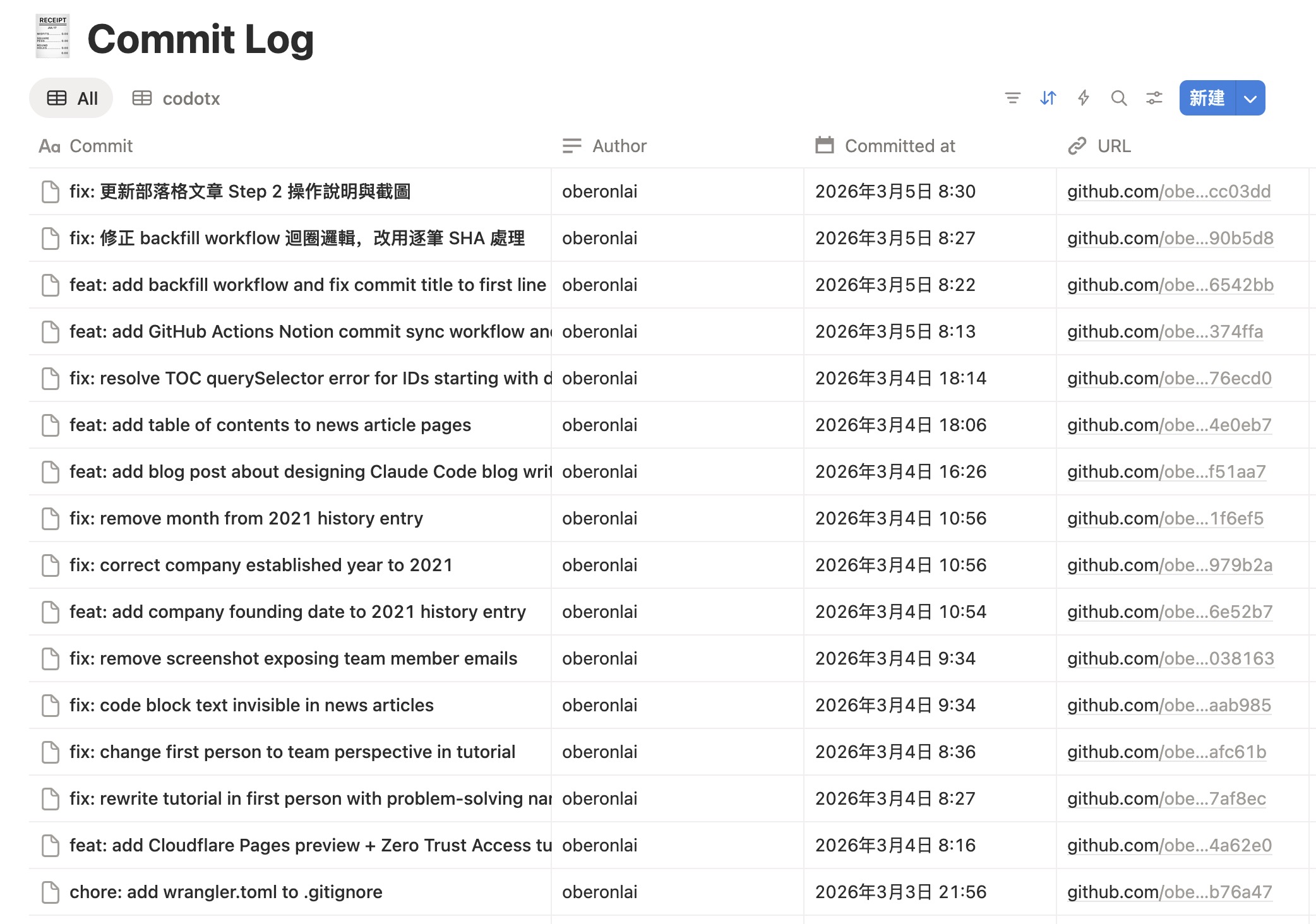
我們在 Notion 建了一個 Commit Log 資料庫,欄位這樣設計:
| 欄位 | 類型 | 說明 |
|---|---|---|
| Commit | Title | commit SHA 作為標題 |
| Repo | Select | 哪個 repo,例如 codotx |
| SHA | Text | 完整的 commit hash |
| Message | Text | commit 訊息 |
| Author | Text | 誰推的 |
| Committed at | Date | 提交時間 |
| URL | URL | 點了直接跳到 GitHub 的 commit 頁面 |
| Related Task | Relation | 可選,關聯到 Notion 的工作事項 |
最後一個 Related Task 是選配。如果你的 Notion 裡有任務資料庫,可以用 relation 把 commit 跟任務串起來,方便追蹤「這個功能改了哪些 commit」。
Step 1:建立 Notion Integration
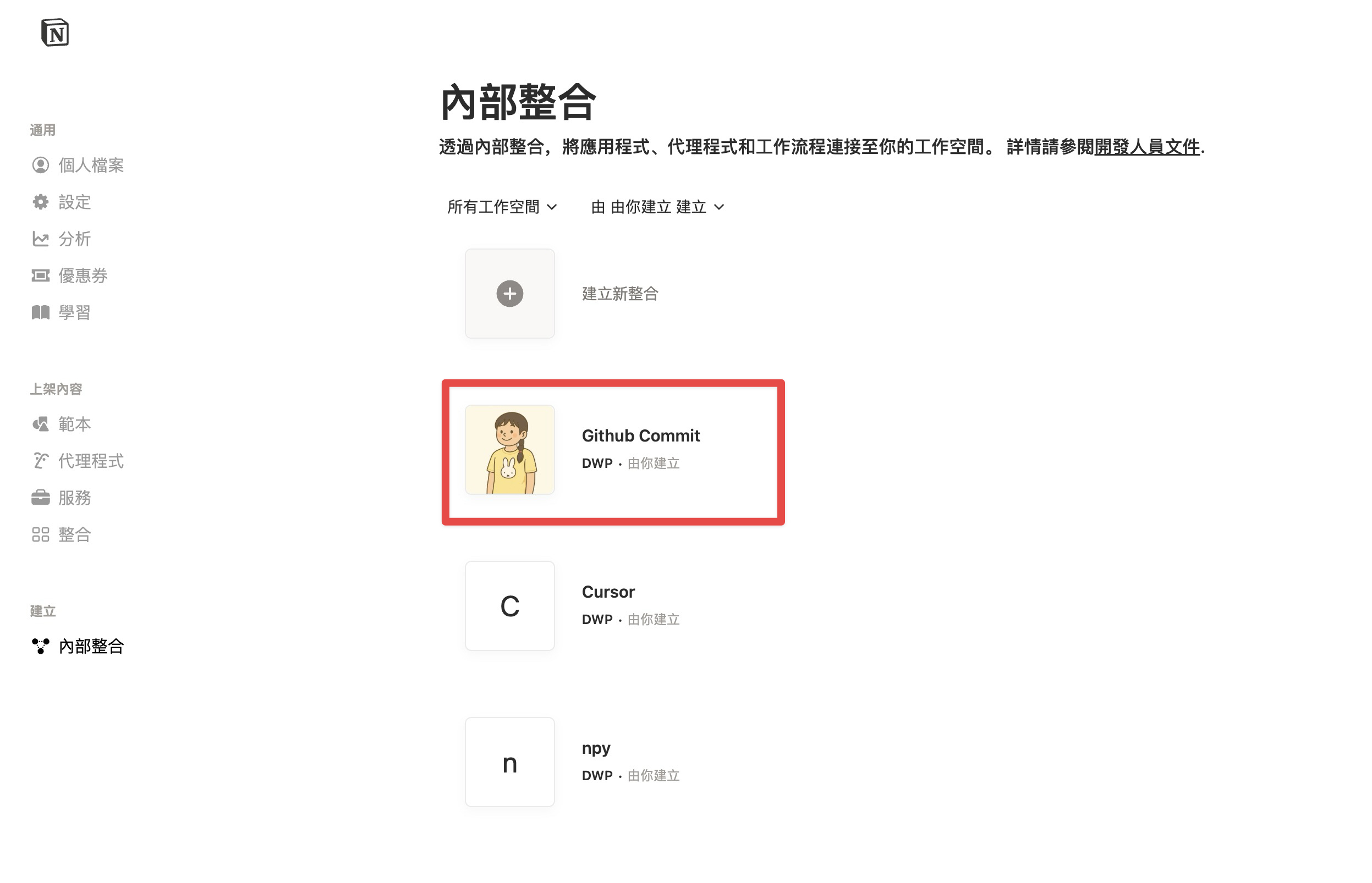
Notion API 需要一個 integration token 才能寫入資料。到 Notion 的 Settings → Developers(開發者),建立一個新的 Internal integration,名稱隨意,我們取叫 Github Commit。
建好之後,把 內部整合密鑰(Internal Integration Token)複製起來,等一下要放到 GitHub Secrets。
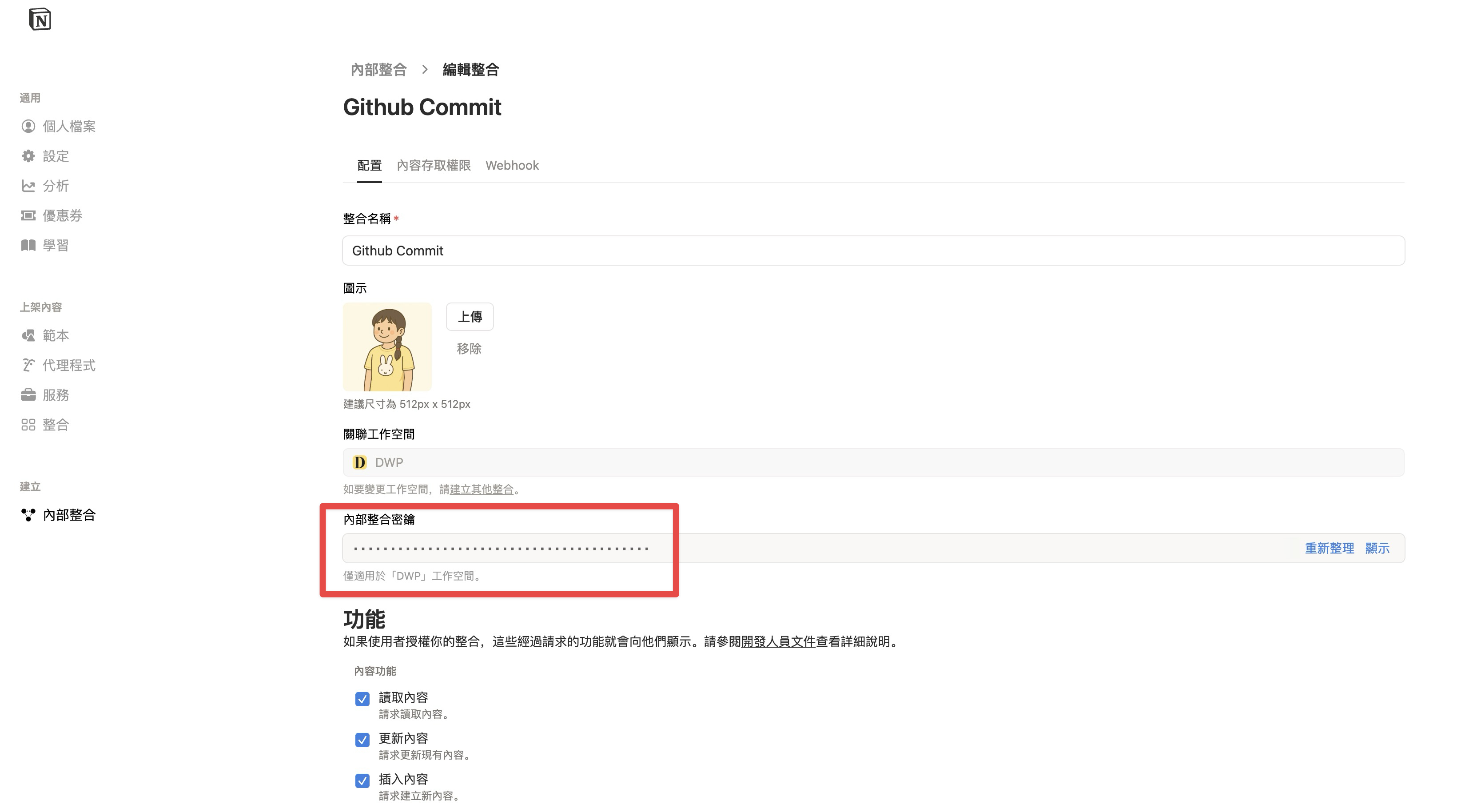
這組 token 是機密,不要貼到公開文件、聊天室或 commit 進 repo。只放在 GitHub Secrets 裡。
Step 2:把資料庫分享給 Integration
這一步很容易漏掉。光建 integration 不夠,還要把你的 Commit Log 資料庫 Share 給它。
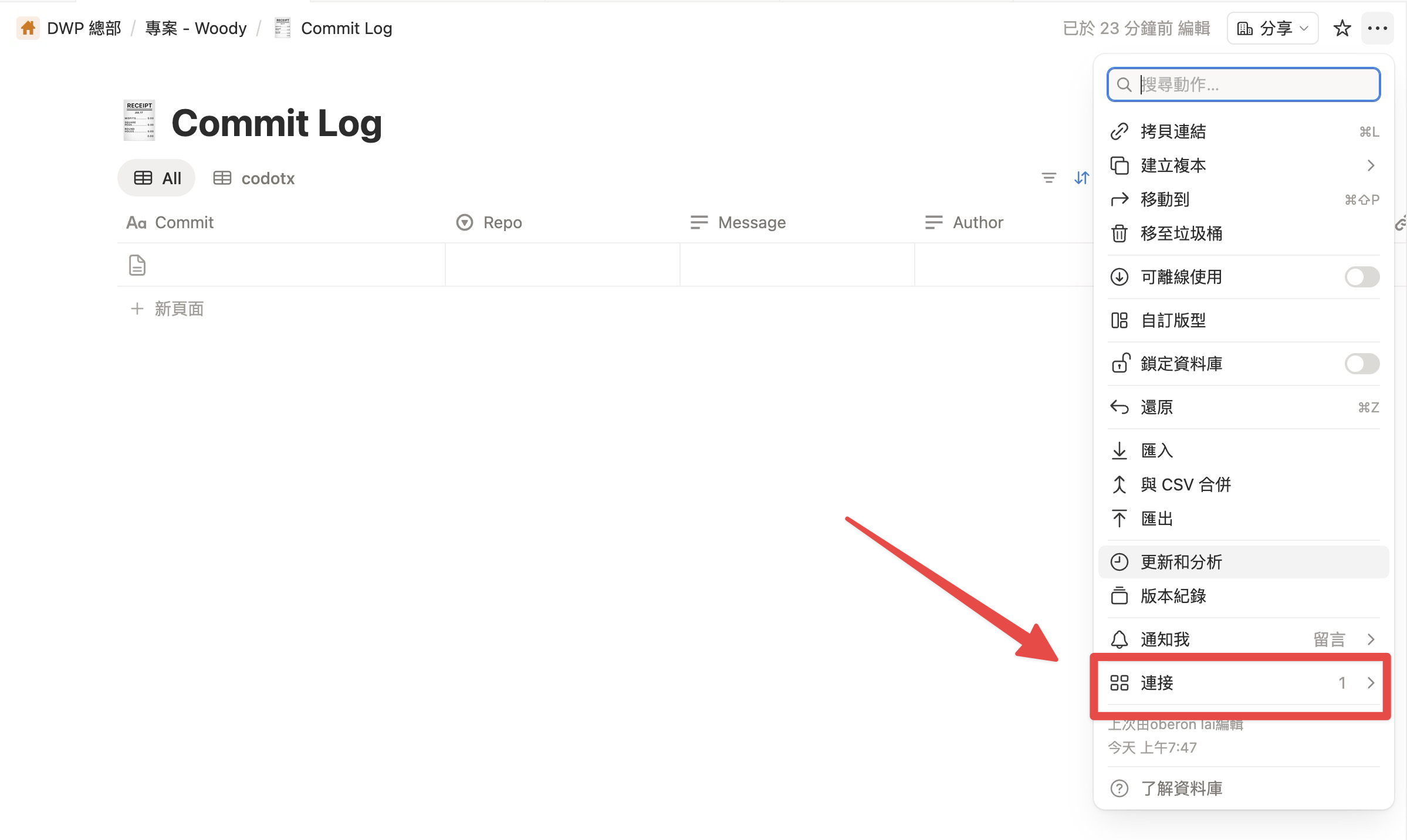
打開 Commit Log → 右上角 ⋯ 選單 → 最下方找到「連接」,點進去把剛建的 integration 加進來,給它 Can edit 權限。沒做這步的話,GitHub Actions 打 API 會拿到 403。
Step 3:設定 GitHub Secrets
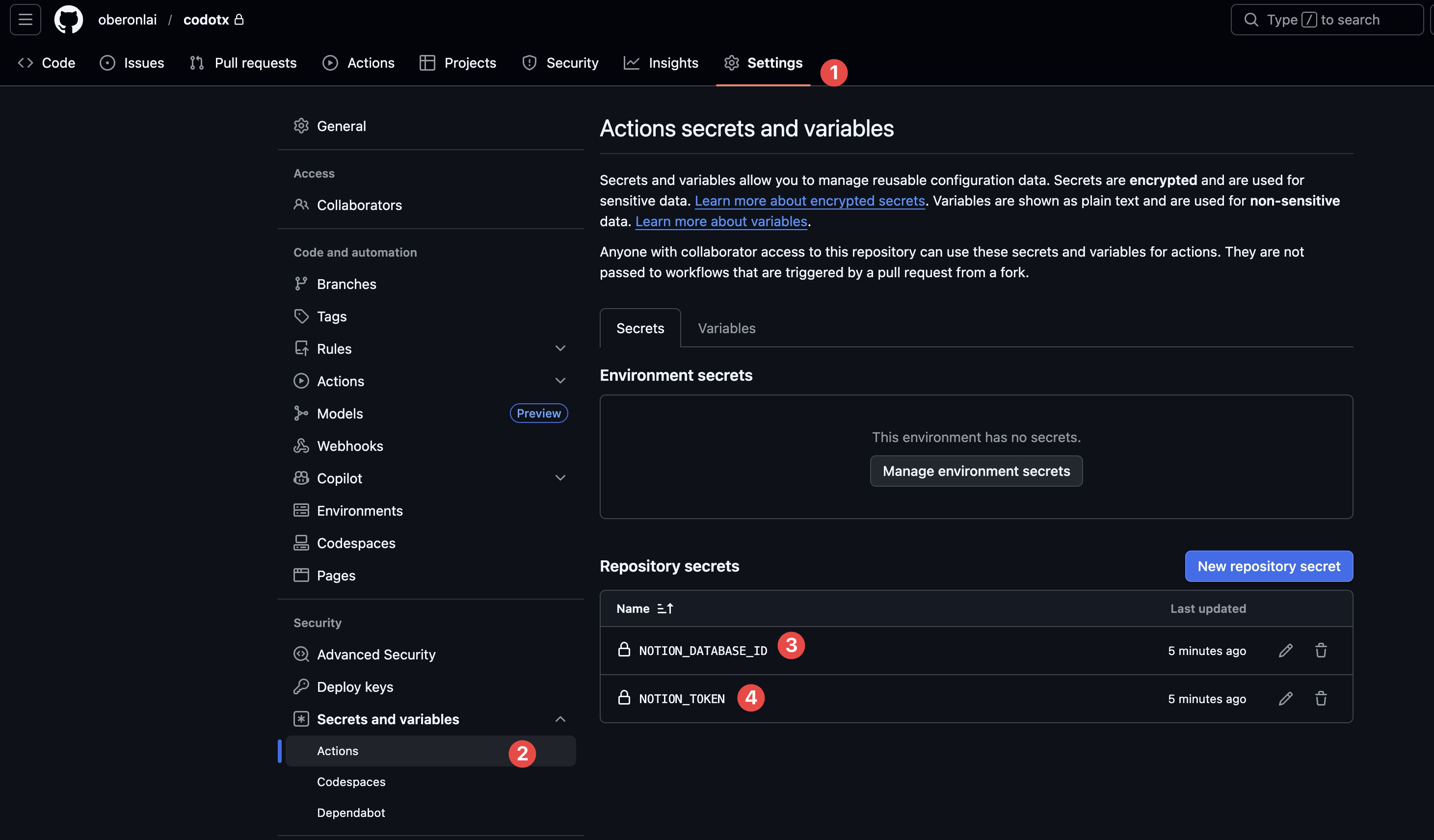
到 GitHub repo 的 Settings → Secrets and variables → Actions,新增兩個 Repository secrets:
NOTION_TOKEN— 剛剛複製的 integration tokenNOTION_DATABASE_ID— Commit Log 的 database ID
Database ID 怎麼拿?用瀏覽器打開 Commit Log 資料庫,網址長這樣:
https://www.notion.so/你的workspace/xxxxxxxxxxxxxxxxxxxxxxxxxxxxxxxx?v=yyyyyyyy中間那串 32 字元的 xxxx... 就是 database ID。注意不要把 ?v=... 也一起貼進去,那是 view ID。
Step 4:新增 GitHub Actions Workflow
在 repo 新增 .github/workflows/sync-commits-to-notion.yml:
name: Sync commits to Notion (dev)

on:
  push:
    branches:
      - dev

jobs:
  sync:
    runs-on: ubuntu-latest
    steps:
      - name: Create Notion page for commit
        env:
          NOTION_TOKEN: ${{ secrets.NOTION_TOKEN }}
          NOTION_DATABASE_ID: ${{ secrets.NOTION_DATABASE_ID }}
          REPO: oberonlai/codotx
          SHA: ${{ github.sha }}
          ACTOR: ${{ github.actor }}
          MESSAGE: ${{ github.event.head_commit.message }}
          COMMITTED_AT: ${{ github.event.head_commit.timestamp }}
        run: |
          set -e

          COMMIT_URL="https://github.com/${REPO}/commit/${SHA}"

          # Basic escaping for JSON strings
          esc () { python3 -c 'import json,sys; print(json.dumps(sys.stdin.read())[1:-1])'; }

          SHA_J=$(printf "%s" "$SHA" | esc)
          ACTOR_J=$(printf "%s" "$ACTOR" | esc)
          MESSAGE_J=$(printf "%s" "$MESSAGE" | esc)
          COMMITTED_AT_J=$(printf "%s" "$COMMITTED_AT" | esc)
          COMMIT_URL_J=$(printf "%s" "$COMMIT_URL" | esc)

          curl -sS -X POST "https://api.notion.com/v1/pages" \
            -H "Authorization: Bearer ${NOTION_TOKEN}" \
            -H "Content-Type: application/json" \
            -H "Notion-Version: 2022-06-28" \
            --data-binary @- <<EOF
          {
            "parent": { "database_id": "${NOTION_DATABASE_ID}" },
            "properties": {
              "Commit": { "title": [{ "text": { "content": "${MESSAGE_J}" } }] },
              "Repo": { "select": { "name": "codotx" } },
              "SHA": { "rich_text": [{ "text": { "content": "${SHA_J}" } }] },
              "Message": { "rich_text": [{ "text": { "content": "${MESSAGE_J}" } }] },
              "Author": { "rich_text": [{ "text": { "content": "${ACTOR_J}" } }] },
              "Committed at": { "date": { "start": "${COMMITTED_AT_J}" } },
              "URL": { "url": "${COMMIT_URL_J}" }
            }
          }
          EOF
整個 workflow 很單純:監聽 dev 分支的 push 事件,把 GitHub 提供的 commit 資訊(SHA、作者、訊息、時間)用 curl 打 Notion API 寫進資料庫。
中間那個 esc 函式是用 Python 做 JSON 字串跳脫。commit message 裡可能有引號、換行之類的特殊字元,不處理的話 JSON 會壞掉。
Step 5:測試
- 在
dev分支推一個 commit - 到 GitHub → Actions,確認 workflow 跑成功(綠勾)
- 回 Notion 的 Commit Log,應該會看到新的一筆紀錄
如果 Actions 頁面顯示紅叉,點進去看 log。常見的錯誤下面會列。
常見問題
Notion API 回 401 或 403
兩個可能:
- 忘了把資料庫 Share 給 integration。 這是最常見的原因。回到 Step 2 檢查。
- Token 過期或打錯。 如果你有 rotate 過 token,記得同步更新 GitHub Secrets。
Database ID 貼錯
必須是資料庫本身的 ID,不是整段 Notion 網址,也不是 ?v= 後面的 view ID。如果不確定,重新從網址裡擷取一次。
重複寫入
目前的設計是「每次 push 就新增一筆」。正常開發流程不會有問題,但如果你常 rebase 或 force push,同一個 commit 可能會被寫入多次。
要解決這個問題,可以在 workflow 裡先用 Notion API 查詢 SHA 是否已經存在,有的話就跳過。這部分放在下面的進階延伸。
進階延伸
這個基本版已經能用了,但如果想做得更完整,有幾個方向:
- 去重機制: 在寫入前先用 Notion API 的 filter 查詢 SHA 欄位,存在就不新增。多一次 API 呼叫,但能避免 force push 造成的重複紀錄。
- 自動關聯任務: 如果你的 commit message 或 branch 名稱帶有任務編號(例如
TASK-123),可以在 workflow 裡解析出來,自動填入 Related Task 欄位。 - 多 repo 支援: 把這個 workflow 複製到其他 repo,改一下
REPO環境變數和 Repo select 的值就好。所有專案的 commit 都集中在同一個 Notion 資料庫,用 Repo 欄位篩選。
Google 偏好來源
喜歡我們的內容嗎?一鍵將我們設為偏好來源,未來在 Google 焦點新聞與 AI 概覽中就能優先看到我們的文章。